

Managing software development often means juggling multiple tools: tracking issues in Jira, writing code in your IDE, and collaborating through GitLab. Context switching between these platforms disrupts focus and slows down delivery.
With GitLab Duo Agent Platform's MCP support, you can now connect Jira or any tool that supports MCP directly to your AI-powered development environment. Query issues, update tickets, and sync your workflow — all through natural language, without ever leaving your IDE.
What you'll learn
In this tutorial, we'll walk you through:
- Setting up the Jira/Atlassian OAuth application for secure authentication
- Configuring GitLab Duo Agent Platform as an MCP client
- Three practical use cases demonstrating real-world workflows
Prerequisites
Before getting started, ensure you have the following:
| Requirement | Details |
|---|---|
| GitLab instance | GitLab 18.8+ with Duo Agent Platform enabled |
| Jira account | Jira Cloud instance with admin access to create OAuth applications |
| IDE | Visual Studio Code with GitLab Workflow extension installed |
| MCP support | MCP support enabled in GitLab |
Understanding the architecture
GitLab Duo Agent Platform acts as an MCP client, connecting to the Atlassian MCP server to access your Jira project management data. Atlassian MCP server handles authentication, translates natural language requests into API calls, and returns structured data back to GitLab Duo Agent Platform — all while maintaining security and audit controls.
Part 1: Configure Jira OAuth application
To securely connect GitLab Duo Agent Platform to your Jira instance, you'll need to create an OAuth 2.0 application in the Atlassian Developer Console. This grants to GitLab the MCP server authorized access to your Jira data.
Setup steps
If you prefer to configure manually, follow these steps:
- Navigate to the Atlassian Developer Console
- Go to developer.atlassian.com/console/myapps
- Sign in with your Atlassian account
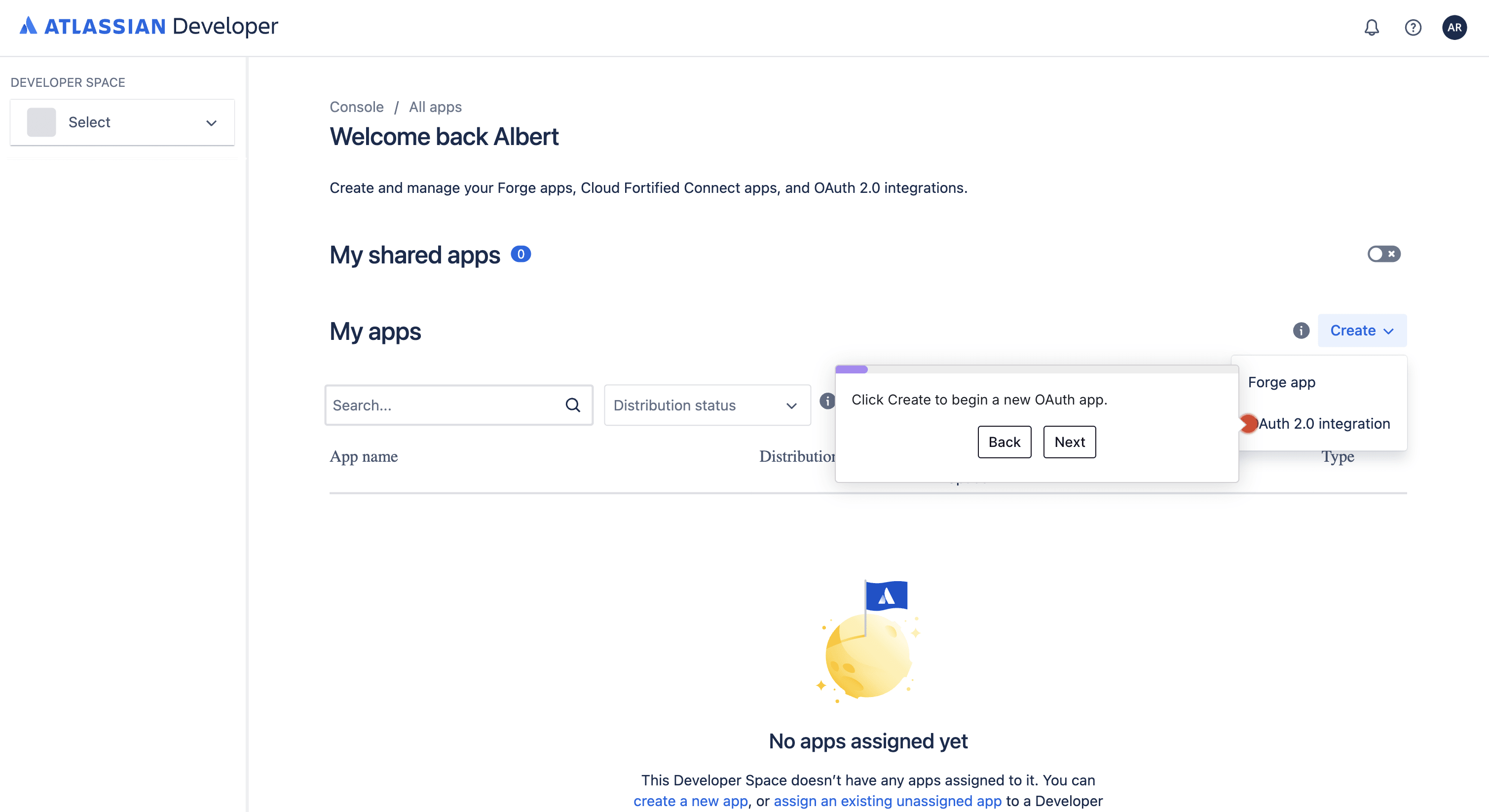
- Create a new OAuth 2.0 app
- Click Create → OAuth 2.0 integration
- Enter a name (e.g., "gitlab-dap-mcp")
- Accept the terms and click Create
- Configure permissions
- Navigate to Permissions in the left sidebar.
- Add Jira API and configure the following scopes:
read:jira-work— Read issues, projects, and boardswrite:jira-work— Create and update issuesread:jira-user— Read user information
- Set up authorization
- Go to Authorization in the left sidebar
- Add a callback URL for your environment (
https://gitlab.com/oauth/callback) - Save your changes
- Retrieve credentials
- Navigate to Settings
- Copy your Client ID and Client Secret
- Store these securely — you'll need them for the MCP configuration
Interactive walkthrough: Jira OAuth setup
Click on the image below to get started.
Part 2: Configure GitLab Duo Agent Platform MCP client
With your OAuth credentials ready, you can now configure GitLab Duo Agent Platform to connect to the Atlassian MCP server.
Create your MCP configuration file
Create the MCP configuration file in your GitLab project at .gitlab/duo/mcp.json:
      {
  "mcpServers": {
    "atlassian": {
      "type": "http",
      "url": "https://mcp.atlassian.com/v1/mcp",
      "auth": {
        "type": "oauth2",
        "clientId": "YOUR_CLIENT_ID",
        "clientSecret": "YOUR_CLIENT_SECRET",
        "authorizationUrl": "https://auth.atlassian.com/oauth/authorize",
        "tokenUrl": "https://auth.atlassian.com/oauth/token"
      },
      "approvedTools": true
    }
  }
}
Replace YOUR_CLIENT_ID and YOUR_CLIENT_SECRET with the credentials you generated in Part 1.
Enable MCP in GitLab
- Navigate to your Group Settings → GitLab Duo → Configuration
- Make sure “Allow external MCP tools” is checked
Verify the connection
Open your project in VS Code and ask in GitLab Duo Agent Platform chat:
What MCP tools do you have access to?
Then
Test the MCP JIRA configuration in this project
At this point you'll be redirected from the IDE to the MCP Atlassian website to approve access:
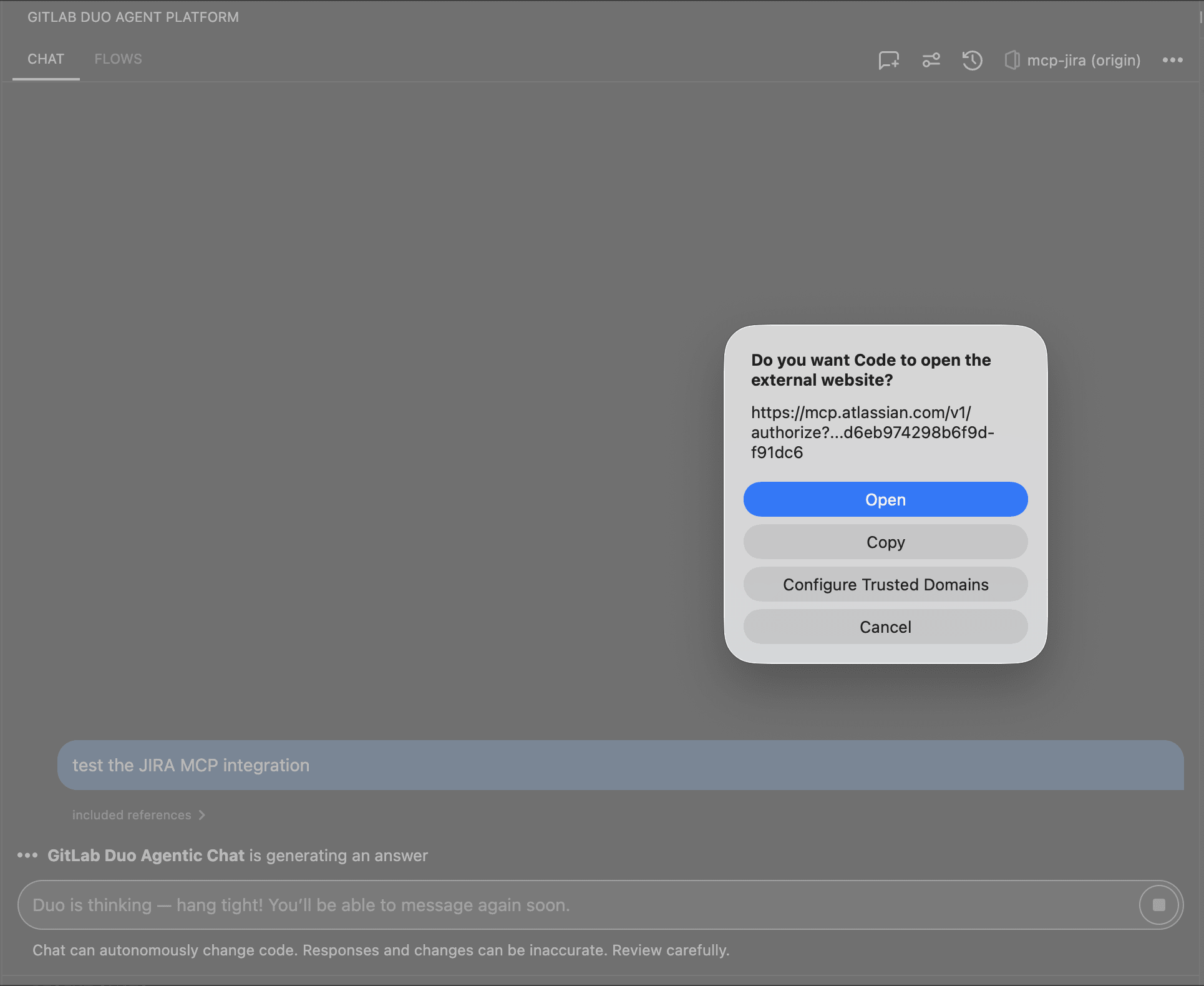 Redirect to MCP Atlassian website
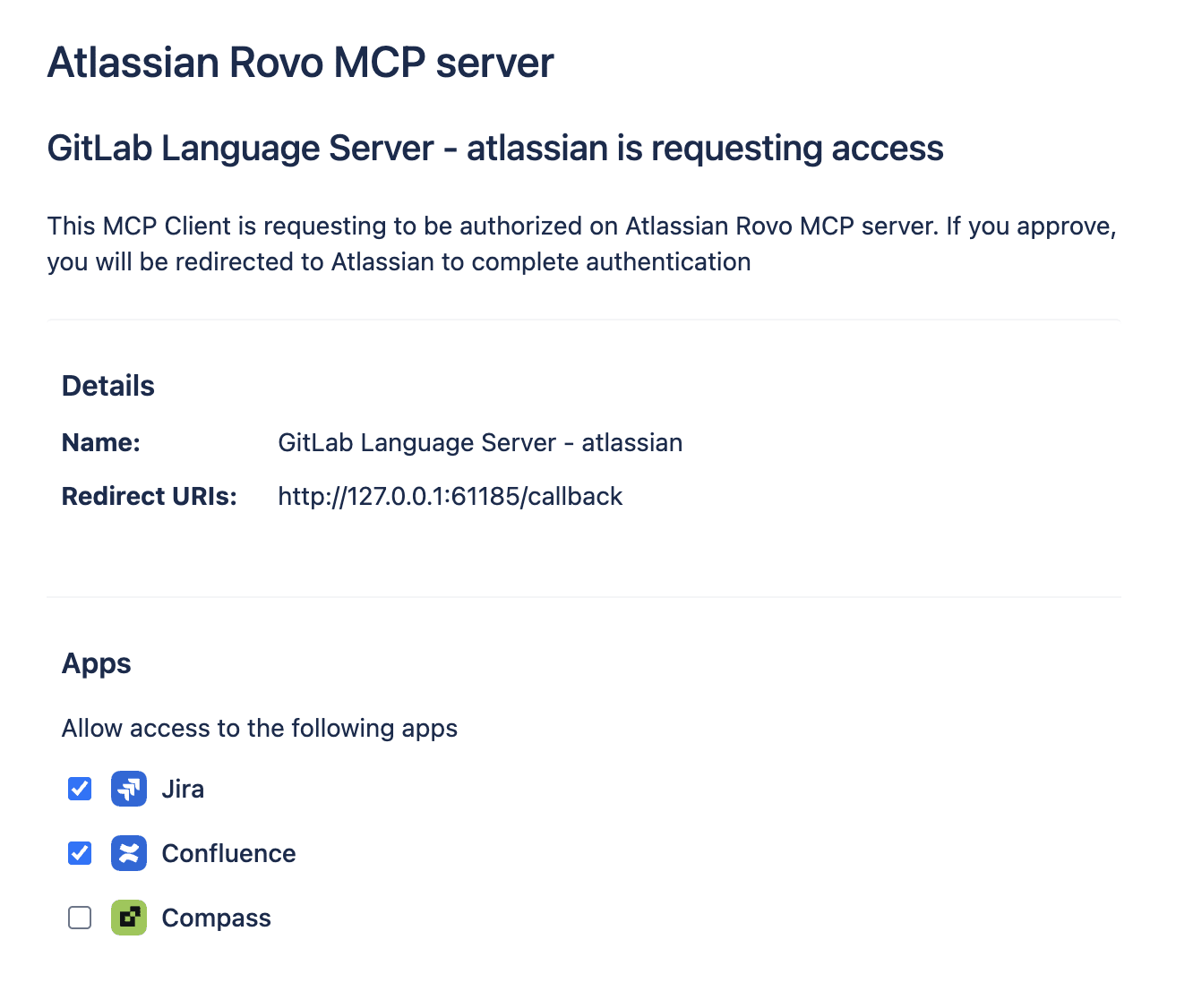 Approve access
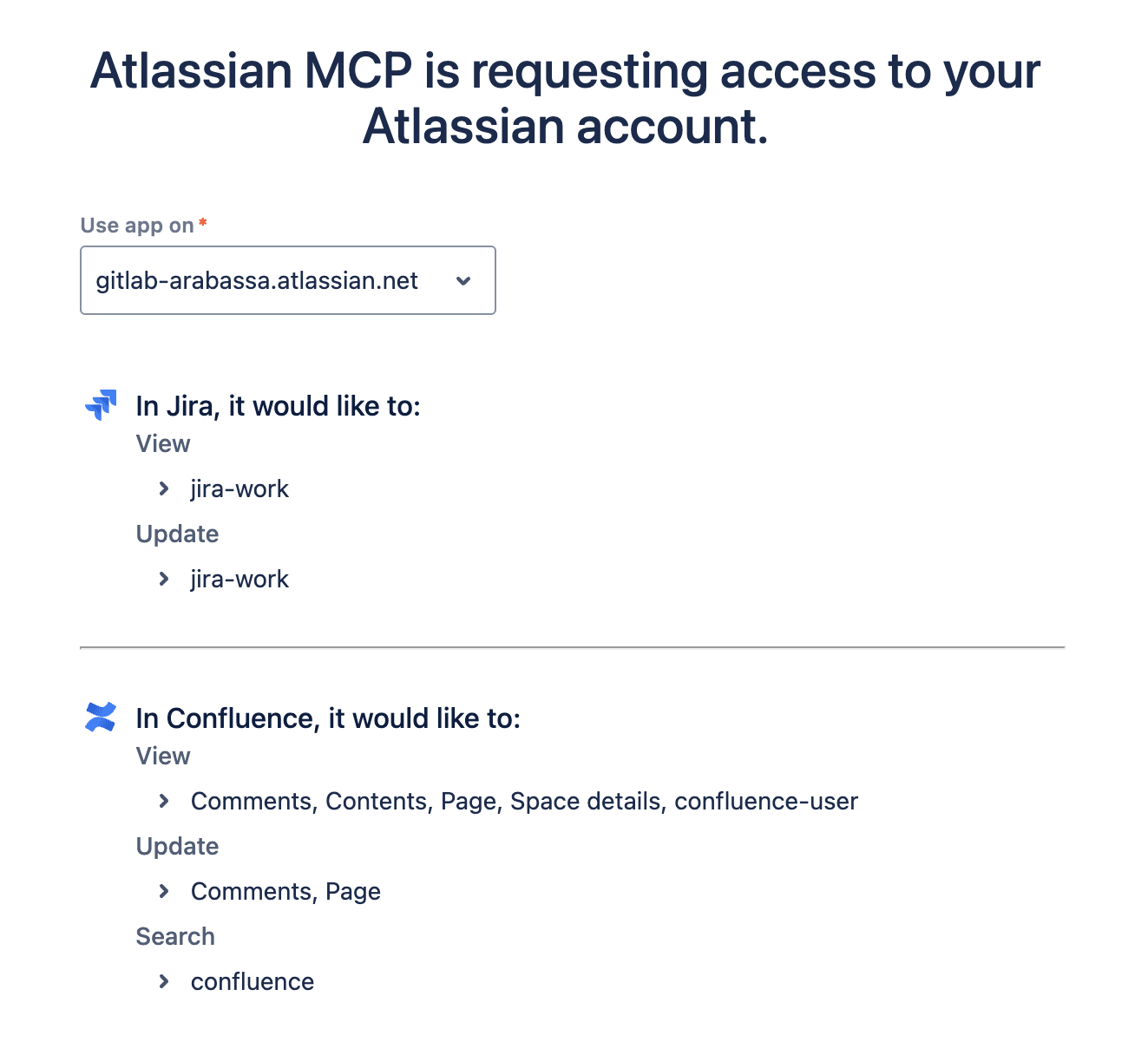 Select your JIRA instance and approve
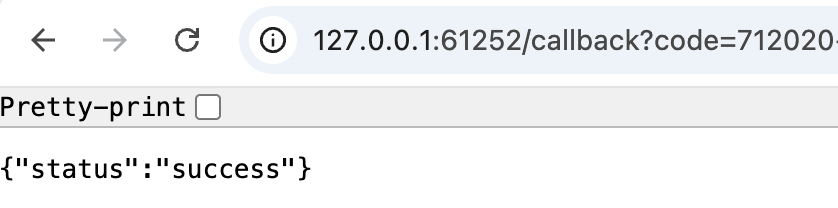 Success!
Verify with the MCP Dashboard
GitLab also provides a built-in MCP Dashboard directly in your IDE for this.
In VS Code or VSCodium, open the Command Palette (Cmd+Shift+P on macOS, Ctrl+Shift+P on Windows/Linux) and search for "GitLab: Show MCP Dashboard". The dashboard opens in a new editor tab and gives you:
- Connection status for each configured MCP server
- Available tools exposed by the server (e.g.,
jira_get_issue,jira_create_issue) - Server logs so you can see exactly which tools are being called in real time
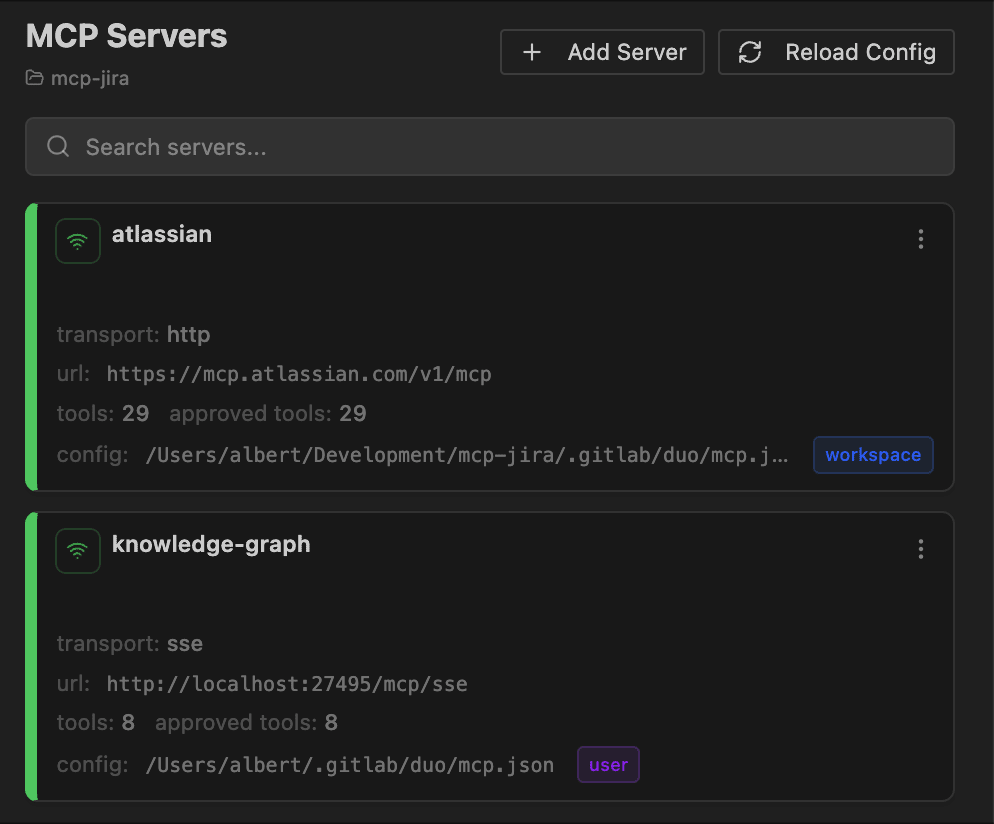 MCP servers dashboard and status
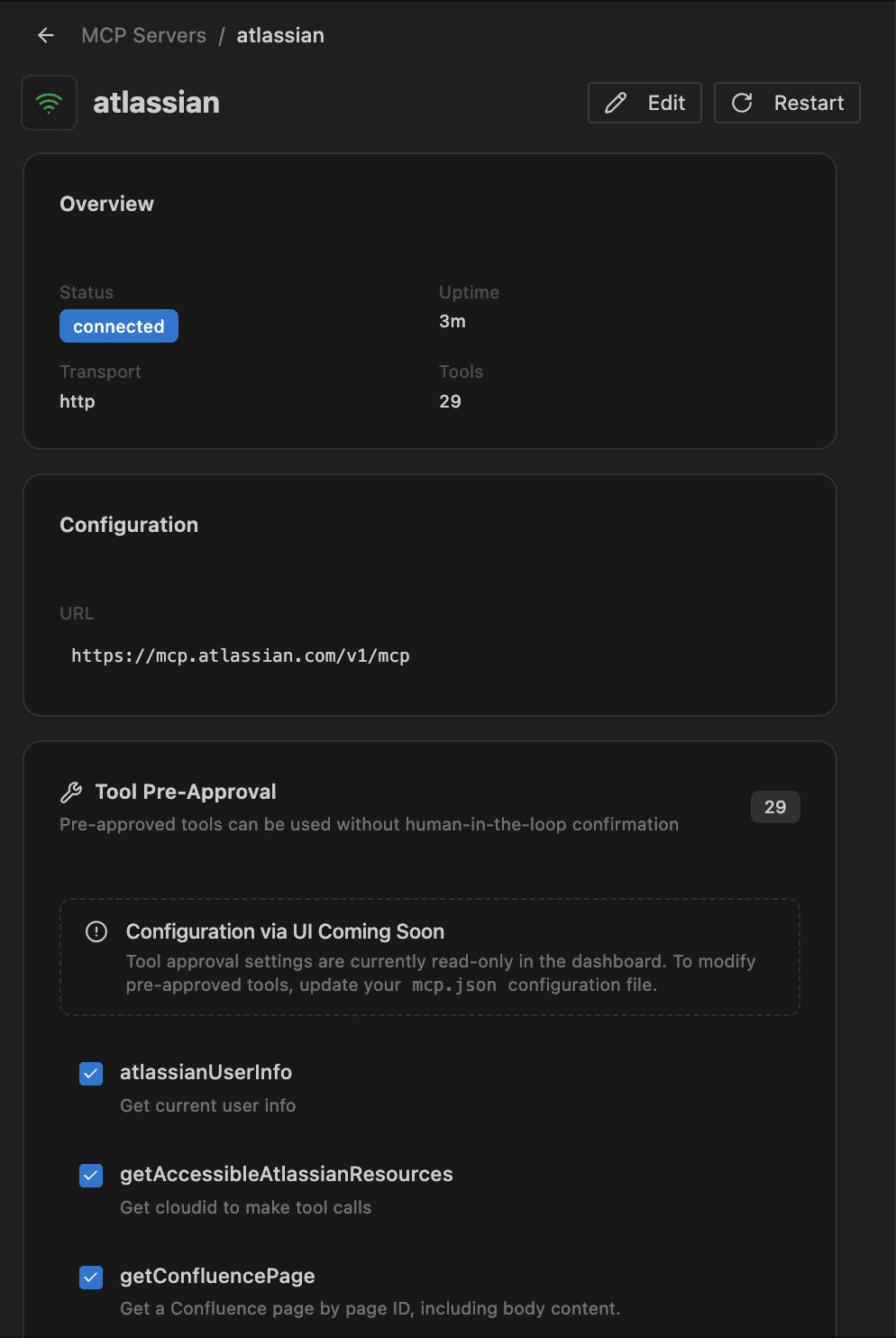 Server details and permissions
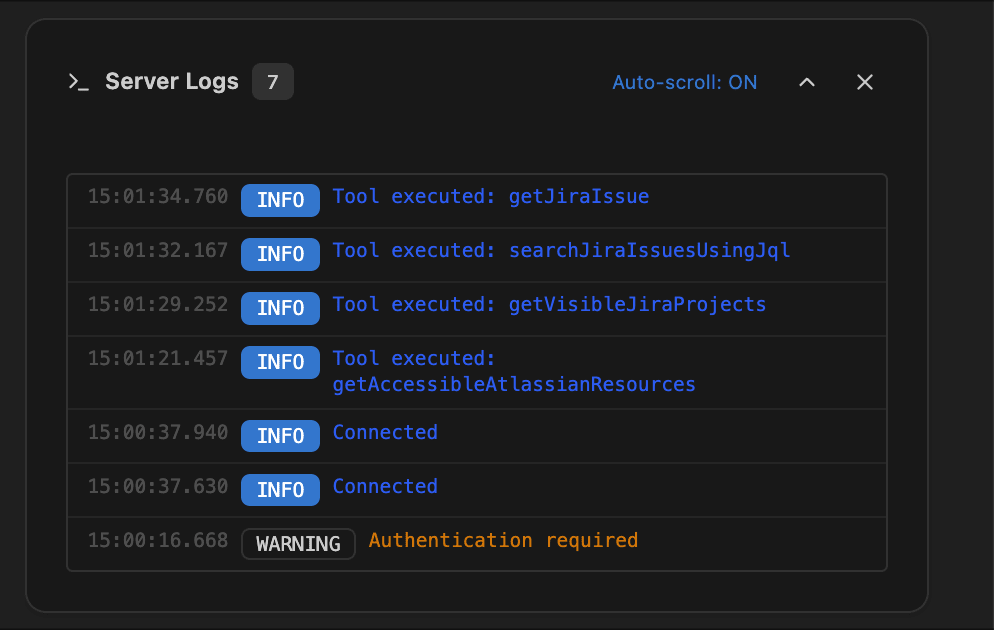 MCP Server logs
Interactive walkthrough: Testing MCP
Part 3: Use cases in action
Now that your integration is configured, let's explore three practical workflows that demonstrate the power of connecting Jira to GitLab Duo Agent Platform.
Planning assistant
Scenario: You're preparing for sprint planning and need to quickly assess the backlog, understand priorities, and identify blockers.
This demo shows you how to:
- Query the backlog
- Identify unassigned high-priority issues
- Get AI-powered sprint recommendations
Example prompts
Try these prompts in GitLab Duo Agent Platform Chat:
List all the unassigned issues in JIRA for project GITLAB
Suggest the two top issues to prioritize and summarize them. Assign them to me.
Interactive walkthrough: Project planning
Issue triage and creation from code
Scenario: While reviewing code, you discover a bug and want to create a Jira issue with relevant context — without leaving your IDE.
This demo walks you through:
- Identifying a bug while coding
- Creating a detailed Jira issue via natural language
- Auto-populating issue fields with code context
- Linking the issue to your current branch
Example prompts
      Search in JIRA for a bug related to: Null pointer exception in PaymentService.processRefund().
If it does not exist create it with all the context needed from the code. Find possible blockers that this bug may cause.
Create a new branch called issue-gitlab-18, checkout, and link it to the issue we just created. Assign the JIRA issue to me and mark it as in-progress.
Interactive walkthrough: Bug review and task automation
Cross-system incident investigation
Scenario: A production incident occurs, and you need to correlate information from Jira (incident ticket), GitLab Project Management, your codebase, and merge requests to identify the root cause.
This demo demonstrates:
- Fetching incident details from Jira
- Correlating with recent merge requests in GitLab
- Identifying potentially related code changes
- Generating an incident timeline
- Design a remediation plan and create it as a work item in GitLab
Example prompts
"We have a production incident INC-1 about checkout failures. Can you help me investigate with all available context?"
Create a timeline of events for incident INC-1 including related Jira issues and recent deployments
Propose a remediation plan
Interactive walkthrough: Cross-system troubleshooting and remediation
Troubleshooting
These are some common setup issues and quick fixes:
| Issue | Solution |
|---|---|
| "MCP server not found" | Verify the mcp.json file is in the correct location and properly formatted |
| "Authentication failed" | Re-check your OAuth credentials and ensure scopes are correctly configured in Atlassian |
| "No Jira tools available" | Restart VS Code after updating mcp.json and ensure MCP is enabled in GitLab |
| "Connection timeout" | Check your network connectivity to mcp.atlassian.com |
For detailed troubleshooting, see the GitLab MCP clients documentation.
Security considerations
When integrating Jira with GitLab Duo Agent Platform:
- OAuth tokens — Make sure credentials remain secure
- Principle of least privilege — Only grant the minimum required Jira scopes
- Token rotation — Regularly rotate your OAuth credentials as part of security hygiene
Summary
Connecting GitLab Duo Agent Platform to different tools through MCP transforms how you interact with your development lifecycle. In this article, you have learned how to:
- Query issues naturally — Ask questions about your backlog, sprints, and incidents in natural language.
- Create and update issues on all your DevSecOps environment — File bugs and update tickets without leaving your IDE.
- Correlate across systems — Combine Jira data with GitLab project management, merge requests, and pipelines for complete visibility.
- Reduce context switching — Keep your focus on code while staying connected to project management.
This integration exemplifies the power of MCP: standardized, secure access to your tools through AI, enabling developers to work more efficiently without sacrificing governance or security.